Local editing · Flexible layouts · HD option

Merge Photos Online for Free

Combine multiple photos into one custom collage in your browser. Choose a layout, arrange every image, and download your finished photo grid.

Local editing · No signup · Clear export options

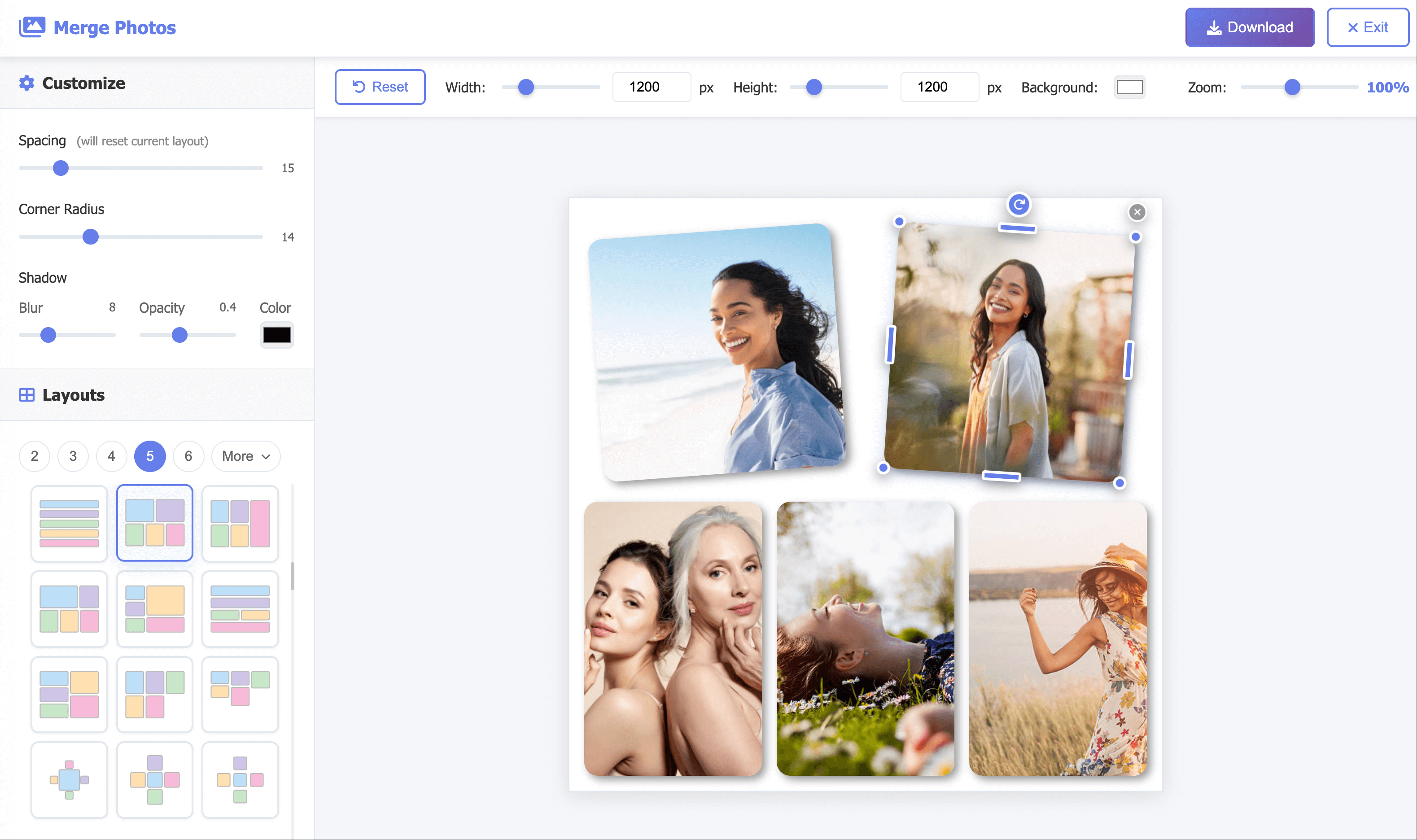
Merge Photos Editor Demo

Why Merge Photos?

Instant Export Options

Preview for free, then choose a watermarked download or a watermark-free HD export.

Largest Template Collection

From 2 to 16 photos with diverse layouts to fit every story.

Drag, Rotate, Resize

Arrange photos freely: drag, rotate and resize with precision.

Spacing, Corners, Shadows

Fine-tune spacing, rounded corners and shadows with ease.

An Easy Way to Merge Photos in Your Browser

Merge Photos is a browser-based collage maker for combining 2 to 16 pictures into one image. Start with a ready-made layout—side by side, vertical stack, grid, or Auto—then drag, rotate, and resize each photo. Adjust spacing, corners, shadow, and canvas size in a live preview before you download.

How to Merge Multiple Photos Into One

1. Select Your Photos

Choose Select Photos and pick at least two JPG, PNG, or WebP files. Editing starts locally in your browser—no account required.

2. Pick a Layout and Arrange

Use Auto for a quick start or choose a template for your photo count. Drag, resize, or rotate each image so important details stay visible.

3. Customize and Download

Set canvas size, background, spacing, corners, and shadow, then choose Get Image. Free downloads are watermarked and lower resolution; a paid option unlocks watermark-free HD.

Popular Ways to Combine Photos

One merged image is easier to post, compare, and share than several separate files:

Side-by-Side Comparisons

Put two photos in one frame for before-and-after shots, product options, progress updates, or design alternatives.

Social Media Grids

Combine event, travel, or weekend highlights into one square, portrait, or landscape collage ready to post.

Memories and Portfolios

Collect family photos, trip scenes, or product angles in a single image that is easy to send or archive.

Steps and Print Sheets

Stack photos for recipes, tutorials, or timelines, or set custom canvas proportions for a keepsake or print layout.

Choose the Right Photo Layout

Use a horizontal two-photo layout for comparisons, a vertical stack for screenshots or step-by-step images, and a square grid when four or more photos need equal weight. If aspect ratios differ, start with Auto and refine the crops. Keep faces and labels away from edges; use narrow spacing for a continuous join, or wider gaps and rounded corners when each photo should feel separate.

Local Editing, Clear Export Choices

Selecting and arranging photos happens in your browser without signup. Uploading is only needed if you create a hosted share link. The free export includes a watermark and reduced resolution; a one-time paid download provides the same collage in watermark-free HD.
FAQ

How do I merge photos or images into one?

Choose Select Photos and pick two or more images from your device. Select an automatic or preset layout, drag each photo into position, adjust the canvas and spacing, then choose Get Image to download the collage as one file. You can change templates at any time before exporting.

Can I combine multiple photos without uploading?

Yes. Selecting and editing photos takes place locally in your browser and does not require signup. Your source images are not uploaded just to build the collage. Uploading is only needed if you separately choose to create a hosted sharing link for the finished image.

Can I join two photos side by side or vertically?

Yes. Choose a two-photo horizontal layout to place pictures side by side, or a vertical layout to stack one above the other. You can remove spacing for a continuous join, add a gap or background color, and resize the canvas to fit the orientation you need.

How many pictures can I merge at once?

The editor includes layouts for 2 through 16 photos. For a fast result, select the tab that matches your photo count and start with Auto. Larger sets may need a wider or taller canvas so every image has enough room.

What image formats can I use?

You can select common browser-supported image formats such as JPG, JPEG, PNG, and WebP. Format support can vary slightly by browser and device. If an uncommon camera or design format does not open, convert it to JPG or PNG before adding it.

Can I control the size and appearance of the collage?

Yes. You can set canvas width and height, choose a background color, adjust the gap between photos, round corners, and add or remove shadows. Individual images can also be dragged, rotated, and resized so the final composition emphasizes the right details.

Is the photo merger free?

You can create and preview a collage for free. The free downloaded image includes a tiled watermark and reduced resolution. A one-time paid download is available when you need the same collage in HD without a watermark; the available choices are shown before export.

Does merging photos reduce the original image quality?

The final output is rendered to the canvas dimensions you choose, so its practical quality depends on that size and on the resolution of your source photos. Avoid enlarging small images far beyond their original dimensions. Use the watermark-free HD option when you need the highest available export quality.